Template data describes a template and its parameters. It is stored in JSON format and it can be edited with the template data editor.[1][2]
Template data helps people use templates more easily in the visual editor. When people add a template in the visual editor, a dialog box allows them to enter parameters. When you fill out template data, you create the text and options that you display in that dialog box.
All Fandom wikis let you use template data. However, non-Fandom wikis may or may not have this feature.[1]
What template data looks like


Filling out template data for {{User kind}}
When you add a template to a page in the visual editor, you use a dialog box. The dialog box lets you fill in any parameters. For example, the user might add text, choose a picture, or choose between color options. (This depends on what parameters the template has.)
Template data makes this process much easier. When you make a template, you can use template data to control what the dialog box says. You can describe parameters, give examples, make drop-down lists, and more.
Template data is a great way for template creators to improve user experience for template users. Good template data makes templates much easier to use.
Adding and editing template data
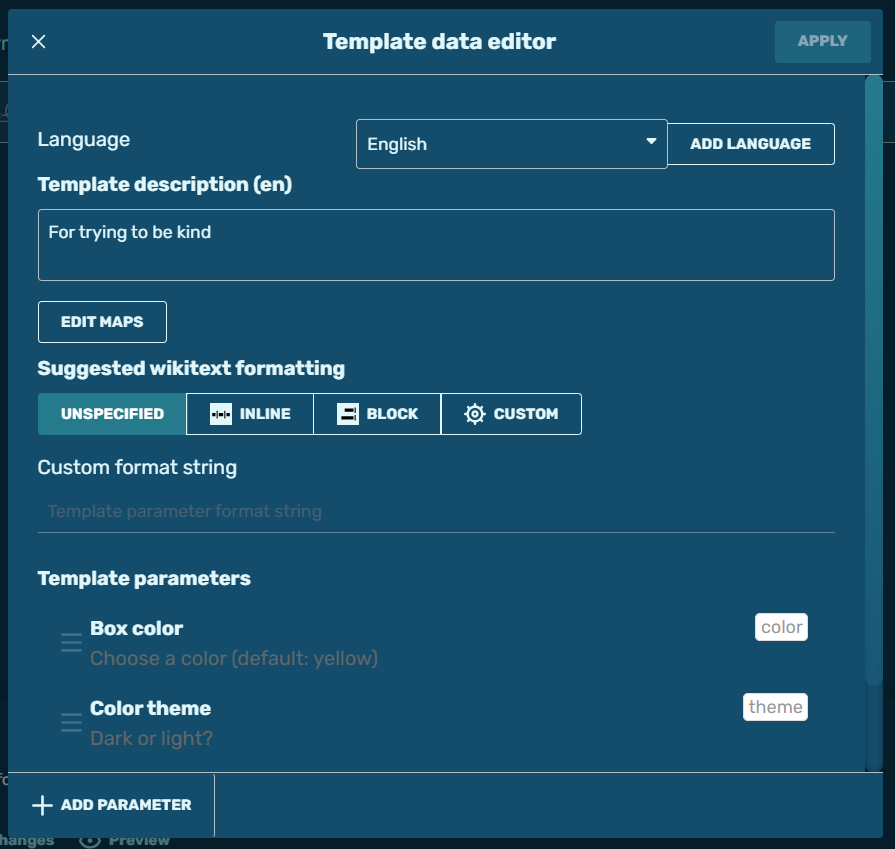

Editing the template data of the {{User kind}} template
Let's say you're making or editing a template and you want to give it template data. Template data may go on a template's main page or its documentation subpage. (If you're editing an existing template with a documentation subpage, check the subpage first. See if it already has template data.)
Here's how to add or edit template data:
- Edit the template's page.
- Look near the top left. Under the template's name is a box that says "Edit template data." Click it. A pop-up window appears.
- Fill out the template description. This helps people understand what your template does. Try to use only a few words.
- Near the bottom, it'll let you add parameters. If you have parameters, add them.
- Edit the info for each parameter (if applicable). You can do this by clicking on the name of a parameter, then editing the options it shows you. Hit "Done" when you're happy with the parameter. (More instructions are in the next section.)
- When you're done, hit "Apply." Look at the end of your template code. Between the
<noinclude>tags will be<templatedata>tags. They hold JSON code based on what you entered.
Here's an example of what template data JSON might look like for {{Main}}:
<templatedata>
{
	"params": {
		"1": {
			"label": "Main article",
			"description": "The exact name of the article you want to link to",
			"example": "Accessibility",
			"suggested": true
		}
	},
	"description": "Link to the main article on a topic"
}
</templatedata>
Data for each parameter


Editing the "color" parameter of the {{User kind}} template
You can fill out specific data for each parameter. This isn't required, and you don't have to fill out every single option. It's okay to leave some fields blank.
Here's what each field does. Items marked with an asterisk (*) are ones you're more likely to use often.
- Name: The exact name of the parameter in your code, which usually gets auto-filled for you (e.g. "color")
- Aliases: Other names for your parameter
- Label*: A well-formatted version of your parameter's name (e.g. "Box color")
- Description*: Briefly describe what users need to know about the parameter. (e.g. "Choose between 6 color options. Default: Green")
- Example*: List one or two example values they could enter (e.g. Blue)
- Type: This lets you say what type of info gets entered, like a string or a number.
- Usually, "unknown" is good enough. But sometimes, your parameter might be something like a file name, number, or username. Then, specifying this type can be useful.
- Suggested values*: Create a dropdown list of suggested values for the parameter (e.g. Blue, Green, Pink)
- Note: Users can still enter values that aren't in your dropdown.
- Default: Say what the default value is. (Note that this doesn't affect your code.)
- Auto value: Set a value that will appear if the user doesn't fill out anything for the template
- Status*: Say the parameter is suggested, required, optional, or deprecated:
- Suggested: Users will be shown the option to enter the parameter. (This is often the best option.)
- Required: If users leave it blank, they'll get a warning message asking if they're sure.
- Optional: Users won't be shown the option unless they add it from a checklist on the left.
- Deprecated: This means the parameter is not recommended for use anymore.
Only fill out the ones you need to use. You can leave everything else blank.
Tips and tricks
The first time you open the "Edit template data" box, it takes a "snapshot" of your current parameters. So if you aren't done messing with parameters in your code yet, you may want to wait until you're further along before hitting the button.
You are allowed to edit template data JSON directly. Sometimes, you may do so and then realize you broke it. Often, that's because you forgot or misplaced a comma. Check your commas. Every list item except the last one needs a comma. (Also check your curly braces.)
Best practices
Make your template data easy to read and understand.
- Always keep accessibility in mind. Try to write clearly with good spelling and grammar. This helps young and neurodivergent users understand you.
- Keep it concise and quick. Avoid long paragraphs of info. They may get hidden behind a "Read more" option.
- Share any limits or guidelines the user should know. For example, "Emojis can be large, up to 22pt"
- Consider sharing what the default options are. For example, if users get to pick a color, you can tell them what the default color setting is (e.g. "Default: blue").
See also
- Lua
- Parser functions
- Templates
- Template parameters
- Userboxes
External links
References
- ↑ 1.0 1.1 Help:TemplateData, MediaWiki
- ↑ Wikipedia:TemplateData/Tutorial, Wikipedia